

Activation, licenses and updates
Activate your trial or license, manage offline access and install updates.
On this page
Activate FlowReactor
FlowReactor is activated by signing in with your FlowReactor account in your browser.
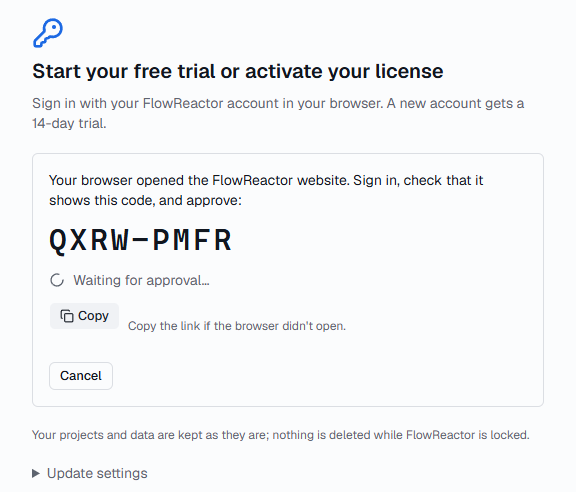
- Choose Activate. Your browser opens the FlowReactor website.
- FlowReactor shows a code. Sign in on the website, check that it shows the same code, and approve.
- FlowReactor unlocks by itself while it shows Waiting for approval….
If the browser didn't open, use the copy-link button under the code and open the link yourself. If the code expires, choose Try again.
The free trial
A new account gets a 14-day trial with every feature. Settings › License shows when it ends. When it ends, FlowReactor shows Your trial has ended; buy a license to keep using it. Your projects are kept as they are.
Licenses
Settings › License shows who the license is for, when updates are included until, and how long this computer can work offline. From there you can:
- Refresh license: check in now.
- Deactivate this computer: free its seat for another computer.
- Your account: open your account page, where you manage installations.
A license includes 12 months of updates. When they run out, FlowReactor keeps working with the versions released before that date; Renew updates extends them.
Working offline
FlowReactor checks in with the licensing service when it starts, and every few hours while a check-in is due. If a license must check in by a certain date, Settings › License says works offline until that date. Two days before it, a banner asks you to Connect to the internet by that date, with a Check now button.
If the time runs out, FlowReactor locks until it can check in. Connect to the internet; it unlocks by itself within a few minutes, or straight away with Check now.
When FlowReactor is locked
While locked, FlowReactor stops running services and shows only the lock screen. Nothing is deleted: your projects are kept as they are.
| Screen | What to do |
|---|---|
| Your trial has ended | Buy a license, then Check now. |
| Reconnect to confirm your license | Connect to the internet; it unlocks by itself. |
| Connect to verify your license | Connect once so this computer can check in. |
| All seats on your license are in use | Deactivate another installation under Manage installations; this one takes the free seat by itself. A computer that hasn't checked in for 90 days releases its seat. |
| This version was released after your maintenance ended | Renew updates, or install a version released before your updates ended. |
| Activate FlowReactor on this computer again | Choose Activate and sign in again. |
| Your license is suspended while a payment dispute is open | It's reinstated automatically if the dispute is resolved in your favor. |
| Your license has been revoked | Contact support if you think this is a mistake. |
Updates
FlowReactor checks for updates when it starts. When one is available, a message says FlowReactor {version} is available with Restart to update. Nothing installs until you choose it. If you have unsaved changes, FlowReactor asks about them first.
You can also check any time in Settings › Updates with Check for updates. Updates are downloaded from FlowReactor and their signatures are checked before they're installed.
Release channels
Settings › Updates › Release channel chooses between:
- Stable: the default.
- Beta: new features first, possibly less polished. When a stable release is newer than your beta, you're offered that instead.
Changing the channel checks for updates straight away. Release notes for every version are in the changelog.